
A bookmark manager for Chrome should do more than store URLs. At minimum, it should help you save pages quickly, keep important links organized, and find them again when you need them.
For some people, Chrome's built-in bookmarks are enough. Chrome can remember favorite and frequently visited websites, and when you sign in with a Google Account, Google says you can use bookmarks and other Chrome information across your devices through Chrome sync (Google Chrome Help).
But many saved links are not just "favorite websites." They are articles to read later, X posts to revisit, documentation to use in a project, tool pages to compare, or PDFs you do not want to lose.
In those cases, the better question is not only "Where should I save this link?" It is also "How will I read, search, and come back to it later?"
Start With Chrome's Built-in Bookmark Manager
Chrome's built-in bookmark manager is the simplest place to start because it is already part of the browser.
With Chrome bookmarks, you can:
- Save a site from the address bar.
- Use the bookmarks bar for frequently opened pages.
- Open Bookmark Manager from Chrome's menu.
- Edit and delete saved bookmarks.
- Create folders.
- Sort and move bookmarks.
- Search bookmarks from the address bar by typing
@bookmarksand then entering keywords (Google Chrome Help).
This is a good fit for links you open often: your calendar, dashboard, banking site, team wiki, analytics tool, or a folder of work resources.
Chrome bookmarks become less comfortable when your saved items are closer to a reading list or personal knowledge archive. Folders can hold links, but they do not always help you remember why you saved something. They also do not turn a saved article, PDF, or document into a focused place to read and revisit.
When Chrome Bookmarks Are Enough
Use Chrome's built-in bookmarks when your main goal is quick access.
They work well for:
- Websites you open every day.
- Stable reference pages.
- Small folders of project links.
- Short lists that you already know how to name.
- Links you can recognize from the title alone.
Chrome is also a good default when you do not want another account, app, or workflow. If you only need a lightweight browser-native bookmark list, adding an external service may be unnecessary.
The limitation appears when your saved links start to pile up. A bookmark title may not contain the phrase you remember. A folder may make sense today but feel vague three months later. And a page saved "for later" can disappear into the folder tree without ever coming back into view.
When to Use a Chrome Bookmark Extension or Saving Service
Use an external bookmark manager or web clipper when saved links need more context.
This usually happens when you want to:
- Save articles, X posts, documentation, tool pages, and PDFs in one place.
- Add notes or tags when saving.
- Search beyond the page title.
- Read articles in a cleaner reading view.
- Save from Chrome but revisit from another app.
- Keep "read later" items separate from everyday browser shortcuts.
- Resurface saved items you forgot about.
Different tools solve different parts of this problem. None of them has to replace Chrome bookmarks completely. You can keep Chrome bookmarks for daily-access links and use a separate service for things you want to read, search, or revisit.
Chrome Bookmark Manager Options to Compare
Chrome Built-in Bookmarks
Chrome's native bookmark manager is best for browser-first organization. It is built into Chrome, syncs with your Google Account when Chrome sync is enabled, supports folders, and lets you search bookmarks from the address bar with @bookmarks (Google Chrome Help).
Choose Chrome bookmarks if you mostly save pages you already know you will open again.
It is less ideal if your saved links are mostly unread articles, research material, long documents, or pages that need notes and context.
Raindrop.io
Raindrop.io is a dedicated bookmark manager with a Chrome extension. Its browser extension help page describes it as a way to save bookmarks, highlights, and tabs while browsing the web. It also describes saving the current page or any link, adding highlights, saving open tabs, and searching from the address bar by typing rd in Chrome.
The Chrome Web Store listing describes Raindrop.io as an all-in-one bookmark manager for bookmarks, highlights, annotations, and tabs, with support for saving articles, photos, videos, PDFs, and pages.
Choose Raindrop.io if you want a broad bookmark library with collections, tags, and cross-device organization.
Instapaper
Instapaper is more focused on reading later. Its save page says the Chrome extension is a fast way to add articles to Instapaper, and the Chrome Web Store listing describes the extension as a way to save links for offline reading.
Choose Instapaper if your main problem is "I found an article and want to read it later."
It is less of a general bookmark manager for tool pages, project references, or mixed saved material.
Readwise Reader
Readwise Reader is built around saving and reading documents. Its documentation says the browser extension saves articles to Reader and can optionally highlight the open web. It also says the extension saves a clean, readable version of a document to your Reader inbox.
Choose Readwise Reader if your saved links are mostly reading material and you want a reading-focused workflow with document notes, tags, and optional highlighting.
Notion Web Clipper
Notion Web Clipper saves web pages into Notion. Notion describes it as a way to save any page on the web to Notion, choose its destination, add notes, share it, make it a task, and tag items for later use.
Choose Notion Web Clipper if your bookmarks belong inside existing Notion databases, project spaces, or team workflows.
It is a strong option when the saved page is part of a larger planning system, not just a link you want to read.
Evernote Web Clipper
Evernote Web Clipper is a browser extension for capturing web content into Evernote. Evernote's help guide says it can capture full-page articles, images, selected text, important emails, and web pages. It is available for Chrome, Safari, and Firefox.
The Chrome Web Store listing says it can save articles, web pages, screenshots, and PDFs to Evernote, and that users can add titles, tags, and choose notebooks.
Choose Evernote Web Clipper if your saved web content should live alongside notes, notebooks, screenshots, and other research material.
Osarai
Osarai is a bookmark management service for things you want to read, try, use, or revisit later. It is not meant to replace every part of Chrome's built-in bookmark manager, and it is not a complete substitute for every read-later or clipping app.
Osarai is useful when your saved links include a mix of web articles, X posts, documentation, tool pages, and PDFs. The Osarai site says you can save X posts, web articles, docs, and PDFs, use a Chrome browser extension to save the article or page you are reading in one click, and read saved articles in a clean reader.
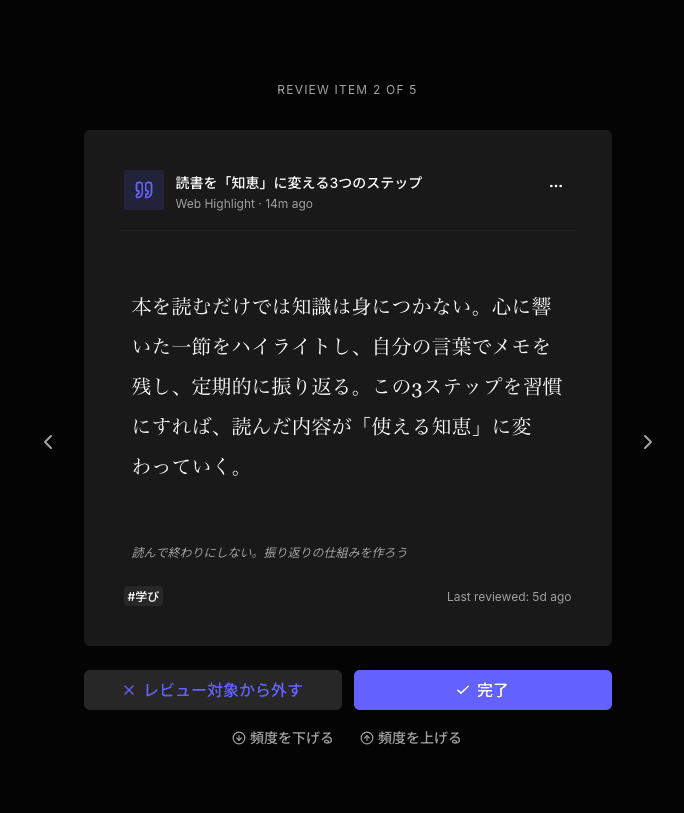
Osarai also focuses on finding and revisiting saved material. It supports search across titles, descriptions, notes, and full text, and its daily review brings back saved articles, posts, pages, and highlights so buried saves do not simply disappear.
Choose Osarai if your problem is not only saving links from Chrome, but also finding them from the words you remember and coming back to things you forgot you saved.
 Osarai
Save links. Find them again.
Save articles and posts you want for later in one place. Search what you remember, and let daily review bring buried saves back.
A Simple Way to Choose
If you mainly need quick browser shortcuts, use Chrome bookmarks.
If you want a larger bookmark library with folders, tags, collections, and browser extension saving, look at Raindrop.io.
If you mostly save articles for later reading, Instapaper may be enough.
If you want a reading inbox with document saving and optional highlighting, Readwise Reader is closer to that workflow.
If your saved web pages belong in a workspace, project database, or task system, Notion Web Clipper fits naturally.
If your saved material belongs in notebooks with clips, screenshots, PDFs, tags, and notes, Evernote Web Clipper is worth considering.
If you save articles, X posts, documentation, tool pages, and PDFs from Chrome and want to search them later by title, description, note, or full text, Osarai is a natural option to consider.
The Best Bookmark Manager for Chrome Depends on the Job
There is no single best bookmark manager for every Chrome user.
Chrome's built-in bookmark manager is still the right tool for many everyday links. It is fast, browser-native, and connected to your Google Account when Chrome sync is enabled. For frequently visited pages, that may be all you need.
External bookmark managers and web clippers become useful when a saved link has a future purpose. Maybe it is an article you intend to read. Maybe it is a PDF for a project. Maybe it is an X post with an idea you want to revisit. Maybe it is documentation for a tool you will need next month.
In those cases, saving is only the first step. A good Chrome bookmark workflow should also help you read, search, and return to what mattered later.
OsaraiSave links. Find them again.
Save articles and posts you want for later in one place. Search what you remember, and let daily review bring buried saves back.
Read more

How to Save Tweets for Later and Actually Find Them Again
Learn how to save tweets for later using X Bookmarks, Bookmark Folders, browser bookmarks, Raindrop.io, and Osarai.

Save Articles for Later: 5 Places That Help You Actually Read Them
Saving an article is easy. Reading it later is the hard part. Compare browser bookmarks, Instapaper, Raindrop.io, Readwise Reader, and Osarai to pick a place you will actually revisit.

Bookmark Manager Guide: How to Save, Find, and Revisit Links
Compare browser bookmarks, bookmark managers, read-it-later apps, web clippers, and Osarai to choose where to save links.